Showing posts with label Question on Computer. Show all posts

How to remove pen-drive for long life

How to remove pen-drive for long life?

How to remove pen-drive
How to remove pen-drive for long life

This is very asked question that how we can keep our pen-drive safe and make it's life long...
Every one knows that money is every thing and saving money is biggest style of life... So for improving life and safeness of our pendrive we have to do Few works and these works are not very hard to do and keeping them in mind...
As you all know that every electronic device become out of order very easy but if we use them safely we can improve their life as we can live...
So now keep few these points in your mind and not only pen drive you may improve life of every electronic object...

According to our topic we are going to telling you that how we can remove our pen-drive safely for improving their life...

How to remove pendrive:-

First of all we wan't to tell you that this tutorial is only for telling you safe removing of your pen drive but for making more safe your pen-drive you have to read these points also...

As we are going to tell you that how to remove your pendrive safely for making it's life long...

As we know in today's life pendrive is very great friend of computer and tablate users. We can keep our important data in it as well as we can exchange or export our data also with the help of pendrive so we have to keep our pen-drive safe so keep reading to know how to remove a pendrive for saving the life of data and pen-drive..


How to tutorial for removing a pendrive safely:-

As removing technique of a pendrive is important , inserting it is also. So learn how to use pendrive safely?
When we use our pendrive mostly every one pull it out directly from computer but it's very harmful for your pendrive and its data also so keep in mind that for that you have to eject your USB device after using that.....

How to use eject option?:- Ist method

First of all when you inserted your pendrive in your pc you have to open my-computer or computer in that you have to right click on removable drive which you wan't to remove (Your pendrive).

After that when you right click on your drive you will see many options from them you have to choose eject option for safely removing your pendrive... As shown in the picture below...

How to eject a pendrive ?:-2nd method ( short way )

First of all click on the little arrow button( the right side of  bottom )
And then click on USB icon as shown in the picture below...


After that you will see a new pop-up tab with showing devices which you have attached with your computer... From all the attached devices click on the device which we wan't to remove safely i mean to say that eject the device. We are learning here about removing pendrive so we will click on pendrive which i have with the name of How To Ans as shown in the picture...

Successfully ejected your pen-drive:-

When you click on Eject option your device will be ejected and you will see following success message in the bottom of your computer screen....

Yeeeeeeehhhhhhoooooooo! we have done the work which was very important to us and you may learn about other devices also....
And you may ask us anything about this or if any other problem you are getting....
Don't worry about how to do keep with how to ans and keep learning and after today won't ask anyone about how to remove pen-drive safely for long life..
Don't forget to give your valuable answer also if you have any other trick regarding that or any thing else...
Click here for Know How To>>

How to delete temporary file of computer

How to delete temporary file of computer | How to make space in computer? | how to boost up speed of your computer?


How to delete temporary file of computer

above questions are very asked question about computer. In today's live everyone has computer or laptop and they wan't to make space in their computer drive and wish to boost the speed of their computer for boosting the speed of your computer you have to learn many thing about your computer but in this tutorial we will tell you that how to delete temporary file of computer which are not useful to us and not important for our computer...
As you know we need to clean our home, clean our self and each and everything requires to clean it. Then why we ain't clean our computer and its dust (temporary Files).
So let's we should focus on the topic that how to clean a computer in other hand how to delete computer's temporary files....

As we always tell you that we don't have to do much more for doing this task we have to take few steps only for doing and completing this task...
So lets begin to the first step...

First step for delete temporary file of computer:-

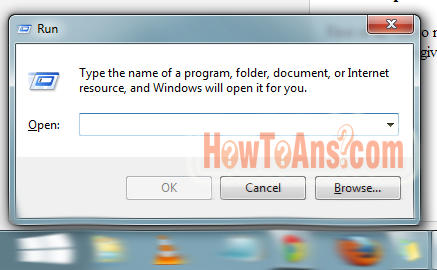
First of all visit to run section of your computer you may use Win + R key's for accessing to the point and when we press given above keys we will see a new pop-up tab as shown in the picture...

Next Step:-

After pressing win+R in run bar we have to type %temp% in the Open box and press ok button...
As shown in the picture below..

Next step for deleting temporary files:-

When we type %temp% and press ok we will be taken to a new window where we will see many temporary files in this window... as described in the picture below..

Next and final step:-

In this step we will learn deleting these files when we see the temporary files as shown above we have to select them all and then press delete button with shift key for deleting them permanently from the computer...
As shown in the picture below..

Try to How to Video tutorial for more understanding:-


Yeeeeehhhhooooooo! we have done...

Note:-Try to use temp replacing with %temp% for full clear temporary files...
Which was very important for increasing speed of our computer we have done it and it make space in our computer also..
So if you have any problem in this or in any other program you may comment us in the box given below....
Click here for Know How To>>

How to know the gender of Computer/laptop | how to check your computer is male or female

How to know Computer Gender? | How to check your computer is male or female? | How to know you computer gander?

this is very interesting question but it's answer is so easy and you can know you computer gander in few seconds how to ?
we are going to tell you:-
First of all open the not pad in you computer and the type the following line in it you can copy and past it:

CreateObject("SAPI.SpVoice").Speak"Hello this is Mypcideas"


and the save the file with the name:-

Mypcideas.vbs


and try to open the file ( click twice on the file)

If you here the voice of a boy than it is male
or
if you here the voice of a girl it means Your computers gander is female...


How to check your computer is male or female?


-:-  In Hindi  -:-
kaise jaan sakte h aapka computer mard h ya ourat?

janne ke liye apne computer me notpad khole or usme type kare ye line

CreateObject("SAPI.SpVoice").Speak"Hello this is Mypcideas"


or ise save kar den


Mypcideas.vbs

ke naam se or save karne ke baad is file ko kholne ki kosis kare to aapko agr
ladke ki aawaj suni de to aapka computer mard h
ro agar ladki ki aawas sunai de to aapka computer aourat h...
wwwowwwwwww
aapko kaisi lagi ye jankari hume likhna na bhule niche diye gye comment box me type and submite your comment we like to help others...

Next time don't ask any one that How to check your computer is male or female? or if you have any answer or question regarding that you can give your feedback in the box given below....
Click here for Know How To>>

How to Disable the Send error report notification

How to Solve the Send Error reporting error
how to Disable the Send error report notification
How to Solve the Send Error reporting error | how to Disable the Send error report notification.
Many times when we use our computer we get a notification like that " Send error reporting " and it's fed up you and you get this error every day and you wan't to stop it but you could't do that so today we will going to inform you about that how to Disable the Send error report notification.
For disable send error reporting notification follow the below steps
First of all for disable send error report notification go to your computers control panel.
Then click on Performance and Maintenance.
Now click on System.
After that Click the Advanced tab.
Now you will see the "error reporting" at last in this window click that.
Now in other window Select the "Disable error reporting" button now your work is done now you will never see the error again...
Do you like this article ?
if yes or if you get any other problem and want to get solution reply to us in the given box below...
if you have any other question in your mind about How to Solve the Send Error reporting error | how to Disable the Send error report notification. or any other answer regarding this question you can give your valuable answer in the box given below.
Click here for Know How To>>

How to Find downloaded File From internet in computer

How to Find downloaded File From internet | Where we can find downloaded file/items

How we can Find downloaded File From internet | Where we can find downloaded file/items
How to Find downloaded File
Many time we download many things from the internet they are can be in the picture , data , software etc.in any form but we face one problem always that we can't download it fully or if we download it then we are not able to find the downloaded file in the computer and after that few question's are come to in our mind that:- Where the downloaded files are gone ? , where we can find downloaded files? , How we can go where is the downloaded file is ? so on many questions are come to in our mind.


This article i writing to inform you that how to and where you can find these downloaded files ?
How to find downloaded files?

This article i'm writing cause in the first few months i also faced same problem and i din't find any accurate article about that and today i decided to help learners.

This is too much now we should directly go to the main subject.
subject is that how to and where we can find the downloaded files in the computer?

We have many ways to find them but we are explaining only three most popular ways only.

First one:-

Direct Downloaded File Finding style/trick
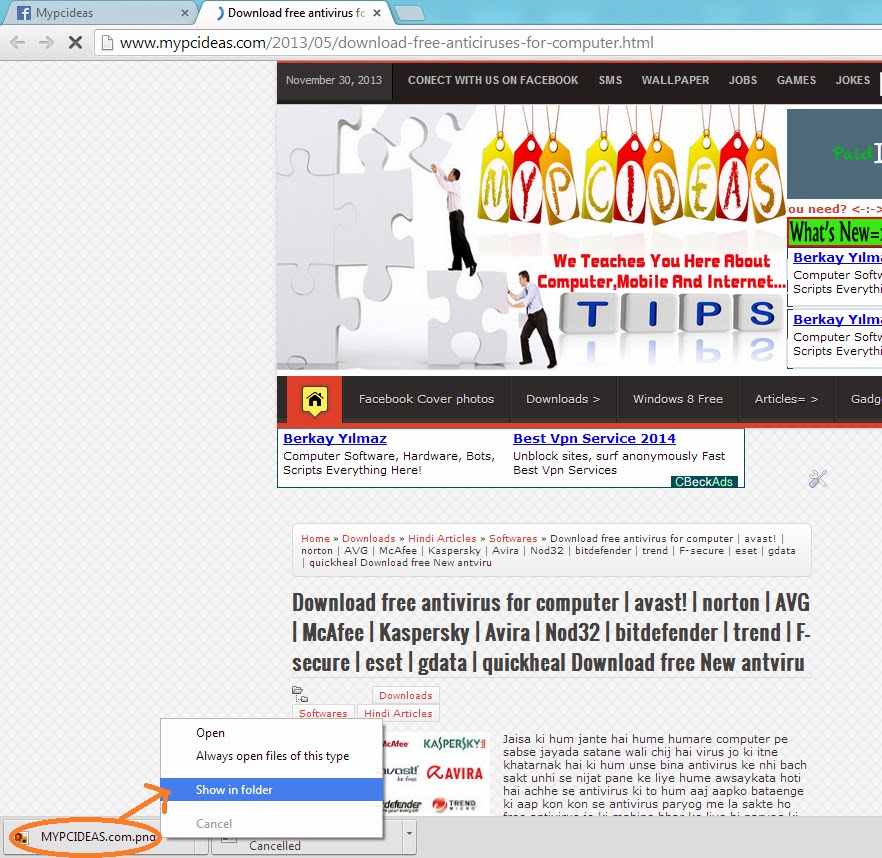
In this way you can go direct from the downloading option under the Downloading browser by clicking on the File and choosing the Show in Folder ( Open File Location ) 


Second One is:-

This way is also a short way for finding the Downloaded files by this way you have to remember the first few words of the file. in this you have to visit to your my computer and then Local disk C and then write the name of the file in the search bar at the top in the right hand side like this in the picture and you will be get success in the finding of the file.


Third One is:-

This is Very Great but long way to find the downloaded file which you lost'd after the download:-

Follow the Given photos for finding the File which is you lost'd after the download and you think'ed about that where is the files are gone.
First of all go to Computer (My Computer)
 Then Enter in the Disk C
 Then Enter in the User
Then Enter to the Folder With your windows name (Ctrl+L to see the name of window)
then Enter in the Downloads folder and all filed which are show in the Folder.
Here the all Problems of your Finding downloaded file is being slowed if you have also any problem you can comment in the given below box we will surly help you... keep in touch for more..
now never ask How to Find downloaded File From internet? | Where we can find downloaded file/items.?
If you have any other answer regarding this question you can give your valuable answer in the box given below...
Click here for Know How To>>

How to operate two pc by one keyboard and mouse

How to operate two Computers by one keyboard and mouse

How to use two computer at a time
 Today, The people have more than one PC. If we have two device and we want to use them both currently, then we required two mouse and two keyboard. But one method is such whereby we required only one mouse and one keyboard to operate two or more than two PC. If both computer are connected by same n/w then we can use a program that is called Multiplicity and we can complete our aim. For this follow few step that are show below:-
How to operate two pc by one keyboard
How to operate two Computer by one keyboard

Use of software:-

For using two pc by one key broad and mouse we have to use a software which is known as multiplicity. It is in two version One is free version which is available only for attaching two computers and other one is paid version which can be used on nine computer's at a time and one key board and mouse . One that is bought. By whose we connected nine computer to one mouse and one keyboard. Whereas from free version we operate only two computer.We download the free version of Multiplicity From Internet and install it in our computer.

How to Use multiplicity:-

First of all we have to install multiplicity on our firs computer by choosing the Primary computer setting (When install) and install it on your second computer also by choosing secondary computer.
After installing multiplicity software we can use both computers by one key board and mouse.

How to use both computers?:-

After that all we are going to telling you that how to use that software and operate the computers. Now we have to open the program and its setting and we have to find our secondary computer on Primary computer (On which our key board and mouse has been installed)
we can find our computer by providing our computer's ip address or by computer's name. after finding that computer we have to click on cog button and for its security reasons we have to provide us a password which provides by our second computer we can use both computer by one key board and mouse by inserting this password in desired area.

Set always connected to both computers:-

After doing these setting we will see a option in the setting bar As Always connect to 000.000.000.000
we have to click on it for let them connected to each other for future (000 are given for example here you will see the ip address of your seconder computer)


How it work?:-

When we take our mouse arrow out of our pc screen it will autometicly move to second computer and like that we will be able to access and operate both pc by one key board and mouse...

How to Disable multiplicity?:-

How to operate two Computers by one keyboard and mouse

For Disabling this setting we have to go in to setting panel and we have to choose disable button for disabling it...

YEEEEeeeeeehooooooooooo! we have done. This was a great work for us which we have learnt before few minutes. so if you get any problem in doing that you may ask your question in the box given below....
Click here for Know How To>>

How to video your computer screen

How to video your computer screen? | How to record your computer screen?

As described above that many one ask from us that How to video your computer screen? | How to record your computer screen? so today we are going to tell you that how you can make a video of your Computer screen and play it as a live computer...
How to video your computer screen

For recording your computer screen we have to use computer software which are available in market and on internet also these software's trail version are available on internet and you may buy these software's and make them lifetime with you, you can register trail version also by buying it from internet these software's are very easy to use for recording a computer screen we don't have to do much more we have to just install the software and click on start recording button and then what you will do in your computer it will be keep recording in your recording software and when you click on its stop button it will be saved in your computer you may access to the recording by checking location of it and you may edit it according to your requirement. If you don't know how to edit a video click here and learn full article about it...
Given few names of software's are very useful in recording your computer screen...

CamStudio
Bandicam
Ezvid
BlueBerry FlashBack Express Recorder
Screenr
Rylstim Screen Recorder
Webinaria
DVDVideoSoft Free Screen Video Recorder
Krut Computer Recorder
Icecream Screen Recorder
ActivePresenter
Jing
Snagit
Camtasia Studio

Above given few names of screen recording software are availbale in the market and on internet you may use them for recording your computer screen....
Yehhhhooooo we have done!
Next time won't ask anyone that how to do that learn and tell others. If you have any other trick regarding this you may tell us in the box given below.... How to ans don't worry about how to do...? 
Click here for Know How To>>

How to scan a document without installing a software?

How to scan a document without installing a software?
This is very asked question by the computer user that how to scan a document if we don't have a software for scanner?
So our team felt that this is very impotent for scanning a document and we should help our fans so today we are going to telling you about that...

How to scan a document without scanner software? :-


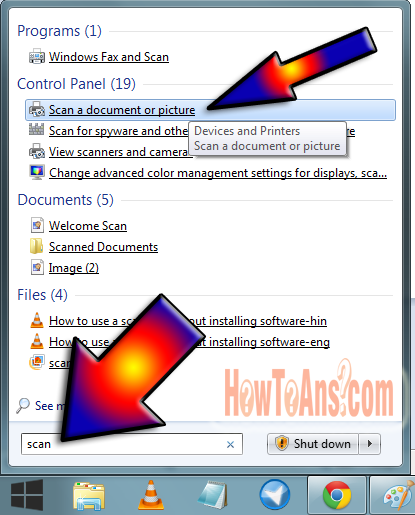
First of all click on start button as your are seeing in the picture...

Next step:-

You have to type Scan in search box than you will see an option with scan a document etc you have to click that as shown in the picture...

Next how to step:-

In next step you will see a new software option for scanning a document in this you have to click on New scan button top in the left hand side as referred in the picture...

Next how to step:-

when you click on new scan once again you will be asked for clicking on scan and after few seconds process your document will be scanned as you are seeing in the picture we have scanned this paper few seconds ago...for saving this scanned document you have to click on the save as button as arrow key is referring you in the picture...


Last step of how to scan?:-

In last step when you click on save as you will asked for where you wish to save the file choose your location and type the name with wish name you want to save your scanned document...
Yeeeeeeeeehhhhhhhhoooooo!
we have done which was bothering us if you won't success in this process please contact us at box given below or if you have any other answer regarding this question you may tell us your answer regarding this... so after today don't ask anyone that how to scan a document without installing a software?
Click here for Know How To>>

How to take backup of computer system?

How to take backup of computer system? | how to create a system image? | how to backup computer settings?
How to take backup of computer system?

as you know that if you don't keep a backup of your computer with you it is may loss your system data and you won't recover them in any way so always keep in mind that if you take backup of your computer it is very helpful for and it will work for you if your system get corrupt and you losses your system data. so think yourself that keeping backup of your system is important or not...

our many friends and relative always face data corrupting and losing problem. That's why today we decided to provide you information regarding How to take backup of computer data?

Now we are state forwarding to the topic and lifting discuss here...
For taking backup we have tow types backpacking options one is manually backup and other one is automatic backpacking options. Now we will discuss both option's one by one and give you fully how to guide with tutorial...

How to turtorial video? :-

http://youtube.com/watch?v=LgUVU0Yl9pE


How to take backup your computer manually? :- (1.1)

First of all click on start button and then click on control panel button as shown in the picture...

Next part-1.2:-

After selecting the Control panel you will see a new window as shown in the picture and you have to choose here system and security option in this as you are seeing in the picture...

Next Part-1.3:-

When we choose the system and security option we will see a new tab in next part in this we have to click on Backup and restore button as in the picture.

Next part of how to guide:- (1.4)

after completing the above tasks we will see a new tab again in this you have to click on the Create a system image button as given below.

How to choose location for backpacking the system data?:-

When you complete the above steps you will be asked for choosing backup store location you may choose any of option from these all which are shown in the picture...

How to set automatic system backup option? :- (2.1)

After following till 1.3 in next tab you will see the below tab in manual backuping option we was choosed Create a sytem image but in this we have to choose Set up backup as you are seeing in the picture below.

How to choose Backup location?:- (2.2)

In this step you may choose any option according to your need and safty... when you choose and click on Next you will be done the process and fully automatic backpacking option will be set'd for your system....


Yeeeeeeehhhhhhhhooooooooo!

Great afert friends we have complete the work which was very easy but we don't know much batter about it so after today tell others about this don't ask any one that how to take backup of computer?
if you liked this and was helpful for you, you may give your Valuable response in the box given below and if you have any other trick regarding this you may tell us in the box given below....
Click here for Know How To>>

How to take screen shot of your computer?

How to take screen shot of your computer? | capture your screen | print your screen | how to save live program as a picture?
How to take screen shot of your computer?

Above questions are very asked question of computer holders for taking a screen shot. take a screen shot and making it a gallery or guide for operating the computer is very useful that's why today we decided to provide you a full guide for taking a screen shot in the computer. Taking a screen shot of computer is not a very hard task it is a very short and easy if you know use computer a little bit. So now we are forwarding to the topic that how to take screen shot in you computer which is any operating system (Windows 7, Windows 8, Windows 10, Windows xp, Windows vista etc.)

How to video tutorial:-


https://www.youtube.com/watch?v=m9b4hiMBiOE

How to take a screen shot of computer? :-

For taking a screen shot just click on the button PrtScn (Print-screen) which is PrtScn button on your keyboard?
In keyboards button's first row after F12 (Function keys) you will see a button with the name PrtScn it is used for taking a screen shot of computer...
Which program you wish to screen shooted open that program and press the button PrtScn if you are using box service it will automatically save in it and if you are not using this service your screen shot will be copied in you copy bar and you may past it and save as you wish...


How to save screen shot of computer? :-

After clicking on PrtScn open the paint program and use paste option for pasting a copied photo or use Ctrl+V for past it in the paint and click on save button or you may edit it according to your requirement...

Now after today wont ask this question to any one that how to take screen shot or print the screen of computer of save computer screen as a picture because you know that how you can do this...
if you have any other trick regarding this you may give your answer in the box given below.. or ask your question which you wan't to know...
Click here for Know How To>>